
Last Updated on March 5, 2026 by Vincent Blaauw
We have added the ability to remove images of removed products & we have better Product Image compression!
In the past you had to rely on plugins to cleanup images that stayed behind after removing items
This does require more than just the RestAPI.
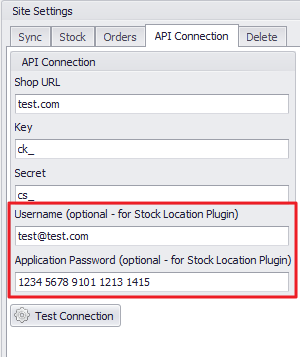
You need to setup an Application password
To Create a Application Password
1) Log in to WordPress with a User that you want to use to create the Application Password on.
2) No go to Users > Profile.
3) Scroll down to Application Passwords.
4) Click on Add Application Password.
5) Keep this password safe and copy it along with your username for the next step.
6) In Smart-IT go to the Company Tab and click on the WooCommerce Icon.
7) Click on the API Connection Tab.
8) Input the desired username as above as well as the Application Password
9) Click on the Save button
Please note this will not remove product images of previously deleted items, only new syncs will be affected.
As you might be aware when you do a Export Product WooCommerce sync from Smart-IT we firstly do some processing on our Server before pushing it to your website. This allows better naming conventions and more control on file sizes.
We have just updated this process.
.jpg is so last season.
.avif does not yet have native WordPress Support.
That is why we decided on .webp.
This format has now been available for years, has better quality and compression than .jpg and thus you are wasting less hosting space.
We have also introduced a automatic resize
On the WooCommerce tab in Smart-IT you will notice a tick box Optimize Images.
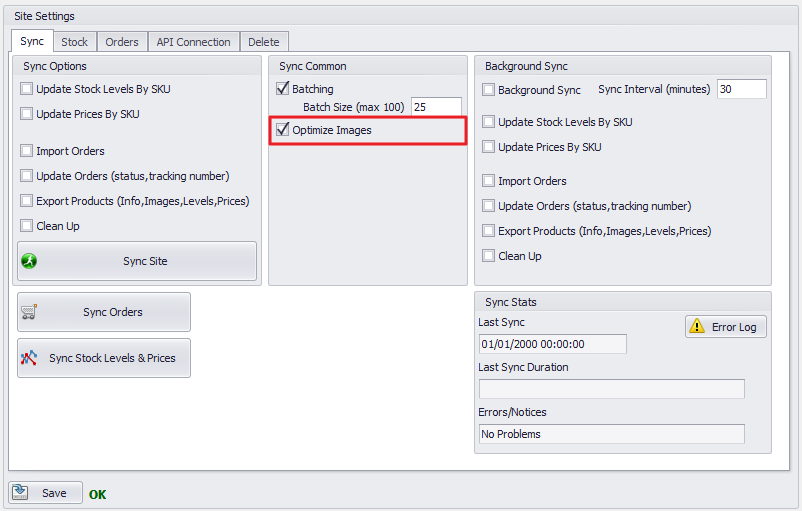
This will ensure Product Images are no larger than 1000 x 1000 pixels, again giving you smaller files.
Please contact us if you require any further assistance.